
Manage gosimless portal users
Checkout creates one superadmin user and one organisation from the billing details and email used when subscribing. All users can sign in at portal.gosimless.com with a code sent to their own email. Members can view the account, and actions that change billing or connections stay with admin and superadmin users. Users can be viewed and managed from the Users page in the gosimless portal.
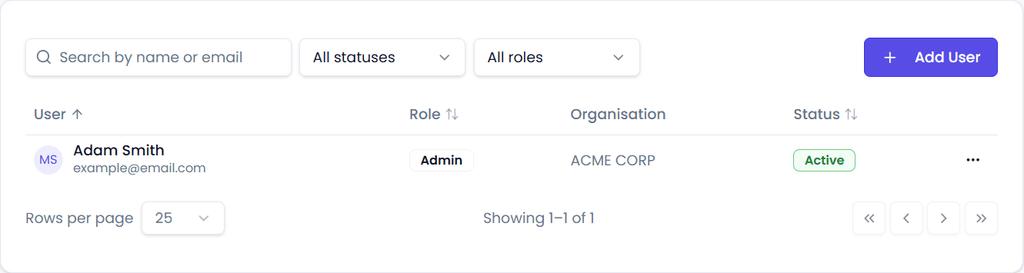
User roles and privileges
Users can have three roles, which determine what access they have: superadmin, admin, and member.
| Role | Access |
|---|---|
superadmin | Everything on the account, including users, organisations, billing, and connections |
admin | Everything on the organisation they are assigned to, except creating, modifying, or deleting other admin users, and except creating or deleting organisations |
member | Read-only |
Further information is in User privileges.
How to add, change, and remove users
A superadmin can add, modify, and delete any user. An admin can add, modify, and delete member users. A member can update only their own profile.
How to add a user
Open Users and select Add User. Use an inbox the person controls. Email Address is their login.
- Sign in at portal.gosimless.com as a
superadmin, or as anadminassigned to the organisation - Open Users in the menu
- Select Add User
- Enter Full Name and Email Address. Phone Number is optional
- Choose Role
- Select Add User
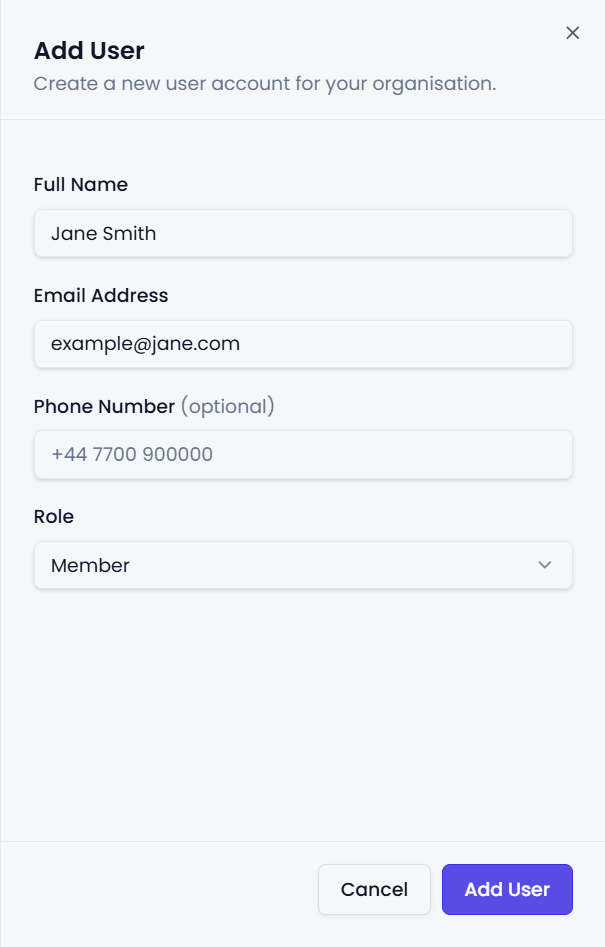
The new user receives an email telling them they were added and the superadmin is cc'd. The user can update their own name and phone later from My Profile, and they sign in with an email code sent to that Email Address.
How to delete a user
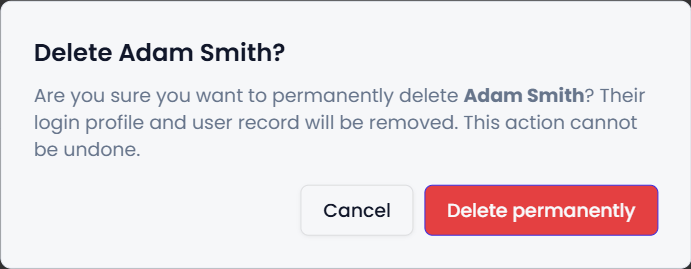
Remove a user when they should lose access, for example when they leave the organisation. Deleting the user removes that login. The organisation, its subscriptions, and its virtual numbers and eSIMs stay in place.
- Open Users
- On the user's row, select the three dots on the right
- Select Delete
- Select Delete permanently
How to sign in
Every new user signs in at portal.gosimless.com by entering their login email and the code gosimless sends to that inbox, so a password is not required to open the account. After a password has been set on that user, the sign-in screen shows a password step and a Forgot password? link once the email is entered.
Use the email address on the user record. Codes go to that inbox, including junk or spam. Each person uses their own email. Sharing one login means sharing one role and one audit trail, which is a poor fit once more than one person needs access.
How to set a password
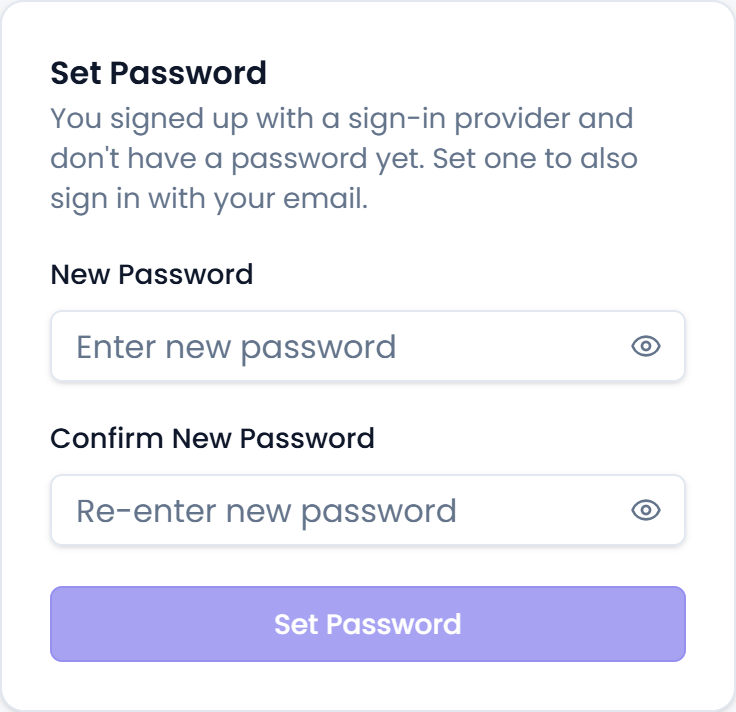
A password is set only after a successful email-code sign-in, from My Profile, in the Set Password section, by entering the new password twice and selecting Set password. Until that is done, email-code sign-in remains the way into portal.gosimless.com.
- Sign in with the email code.
- Select My Profile.
- Open Set Password.
- Enter the new password.
- Enter the same password again.
- Select Set password.
Choose a password you do not use on other services. The UK National Cyber Security Centre advises a unique password for an important account, and changing it when you think someone else knows it, rather than on a fixed calendar (NCSC password guidance).
How to change your password
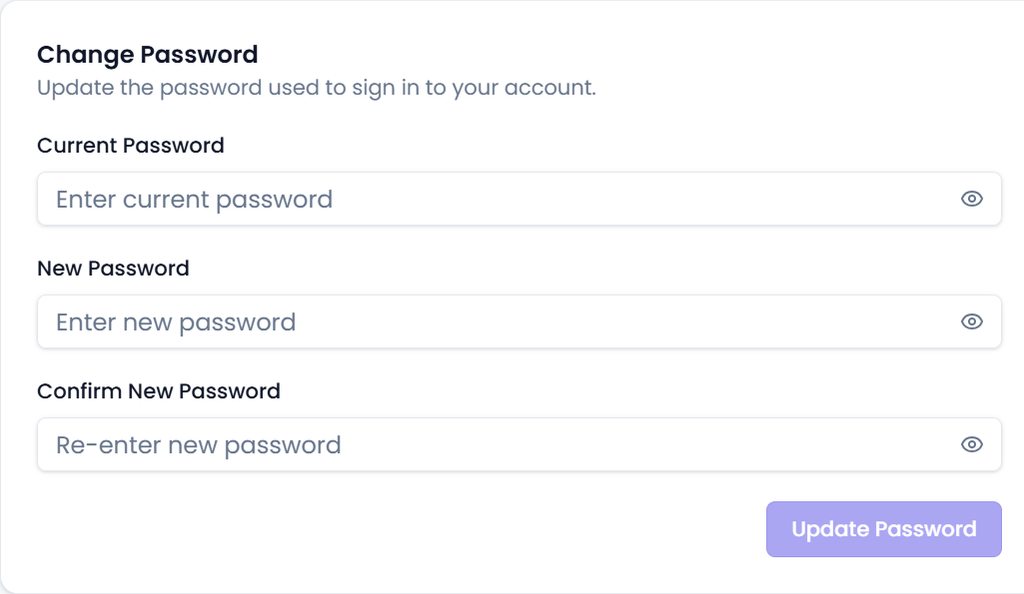
An existing password is changed from My Profile, on Change Password, by entering the current password and the new password twice. Before the change is saved, the portal may ask for a fresh email code to the login address.
- Sign in at portal.gosimless.com.
- Select My Profile.
- Open Change Password.
- Enter the current password.
- Enter the new password.
- Enter the new password again.
- If asked, enter the email code sent to your login address.
- Select Update Password.
Keep the login inbox available while you do this. If you no longer know the current password, use Forgot password? from the sign-in screen instead of this form.
How to reset a forgotten password
Forgot password? appears on sign-in only after a password has already been set, and only once the login email has been entered at portal.gosimless.com. The reset confirms that email with a code, then follows the instructions on screen, and it is the route to use when the current password is unknown.
- Open portal.gosimless.com.
- Enter the login email.
- Select Forgot password?.
- Enter the code sent to that email and complete the on-screen steps.
If no password has been set, there is nothing to reset. Sign in with the email code, then set a password from My Profile if you want one. A member who has lost access to their inbox needs an admin or the superadmin to create a user on a mailbox they can open, then delete the old user if it should no longer exist. See How to change the email on a user.
User privileges
The account has one superadmin, who can manage users, organisations, billing, connections, and subscriptions across the master account. An admin can do that work for the organisation they are assigned to, except creating, modifying, or deleting other admin users, and except creating or deleting an organisation. A member has view-only access and cannot take actions that change payments, billing, or connections.
The following table summarises the privileges for each user role.
| Action | Superadmin | Admin | Member |
|---|---|---|---|
| Sign in with an email code | Yes | Yes | Yes |
| Set, change, or reset their own password | Yes | Yes | Yes |
| Update their own name and phone number | Yes | Yes | Yes |
| Change their own login email in the portal | No | No | No |
Create a member user | Yes | Yes | No |
Create an admin user | Yes | No | No |
| Promote or demote users | Yes | No | No |
Delete a member user | Yes | Yes | No |
Delete an admin user | Yes | No | No |
| Create an organisation | Yes | No | No |
| Delete an organisation | Yes | No | No |
| Update billing information for an organisation | Yes, any organisation | Yes, assigned organisations | No |
| Add or remove a virtual number or eSIM | Yes | Yes, assigned organisations | No |
| Create or cancel a subscription | Yes | Yes, assigned organisations | No |
| Download invoices | Yes | Yes | Yes |
| View call and SMS logs | Yes | Yes | Yes |
| Update a payment method | Yes | Yes, assigned organisations | No |
An admin can add, modify, and delete member users only. A superadmin adds, modifies, and deletes admin and member users. When a user needs a new login email, the superadmin creates the new user and deletes the old one.
How to update your name and phone number
Each user updates their own name and phone number on their user profile after signing in at portal.gosimless.com with their email code. The login email stays fixed on that user, and the organisation billing name, contact number, email, and address are updated in Billing information.
Open My Profile and save the name and phone number shown there. This phone number is the user's own contact detail. It is separate from call forwarding on a virtual number, which can be set and modified in the number configuration settings.
How to change the email on a user
A login email stays as it was when the user was created, and My Profile has no control that replaces it, so a new address means a new user except for the superadmin. The superadmin email is changed by gosimless and that change also updates the master account email.
- Member: Ask an
adminor thesuperadminto create amemberuser on the new email. The old user profile is deleted if that login is no longer required. - Admin: Ask the
superadminto create a user on the new email. The old user is deleted if that login is no longer required. - Superadmin: Email hello@gosimless.com and ask for the
superadminemail to be changed. That change also updates the master account email. Have the new address ready, and keep access to the current inbox until gosimless confirms the change, because sign-in codes still go to the old address until then.
The organisation's invoice email is a different field. Change that under Billing information.
Frequently Asked Questions
Should we set a password or keep using email codes?
Email-code sign-in is enough to use portal.gosimless.com, and it is the method every new user starts with. Set a password from My Profile if you want a second way in that does not depend on waiting for a code. Keep the login inbox monitored either way, because a forgotten password is recovered with an email code. Use a password that is unique to gosimless.
What should we do if the email code does not arrive?
Check the junk or spam folder, then request the code again from the sign-in screen. Codes go to the Email Address on the user. If that address is wrong, create a user on an inbox they can open and delete the old user. An admin or the superadmin can do that for a member. Only the superadmin can do it for an admin. See How to change the email on a user.
Can two people share the superadmin login?
Give each person their own user. The account has one superadmin, and that login is the master control for organisations, billing, and other users. Colleagues who need to change numbers, subscriptions, or billing on a given organisation should be admins assigned to it. People who only need to look up records should be members. Shared passwords also make it harder to remove access when someone leaves.
What should we do when the superadmin leaves the company?
Email hello@gosimless.com while someone can still read the current superadmin inbox. Ask gosimless to change that email to a mailbox the company controls. The change also updates the master account email. Sign-in codes keep going to the old address until gosimless confirms. Create admin users beforehand if other people need to add connections or change billing.
Can an admin look after a second organisation?
An admin is assigned to one organisation and can then update that organisation's billing, connections, and subscriptions. Access to another organisation needs a different email. The superadmin creates that user and assigns it to the other organisation. Only the superadmin opens every organisation with one user email. See Organisations.
Will deleting a user cancel their number or subscription?
Deleting a user removes that login. Open Users, select the three dots on the row, choose Delete, then Delete permanently. The organisation, its subscriptions, and its virtual numbers and eSIMs stay in place. To end a service, cancel the subscription or release the connection. See Subscriptions.
Can the same email be used for two users?
Use one login email per user. Sign-in codes and password resets go to that address, and My Profile cannot change it. A new address means a new user. An admin or member is assigned to one organisation. Access to another organisation uses a different email, which the superadmin creates as its own user.
Who can read call and SMS logs?
A superadmin, an admin, and a member can all view call and SMS logs. A member can read the logs and cannot change forwarding, connections, or billing. An admin sees logs for the organisation they are assigned to. The superadmin can view logs across the account.
Does a password change sign out other browsers?
Change Password asks for the current password and the new password twice. The portal may also ask for an email code to the login address. Select Update Password to save. Those steps do not include signing out other browsers. If you no longer know the password, enter the login email and use Forgot password?.
Which email receives sign-in codes if we change the billing email?
Sign-in codes, password resets, and the email that says a user was added all go to the user's login email. The superadmin is copied on the added-user email. The billing email on Billing information is the organisation contact for invoices. Changing it does not move a user's login. A superadmin email change, done by gosimless, also updates the master account email.
Can a member download invoices for the accountant?
Members can view and download invoices and receipts. They cannot change payments, billing, or connections. An accountant who needs copies can use a member login and download the PDFs from Invoices. Someone with no portal login can receive those files from the member, an admin, or the superadmin. A member login is appropriate when they must not add numbers or change the card.
Who do we contact if we are locked out of every inbox?
Email hello@gosimless.com from an address you can prove belongs to the business. Include the account name, the organisation billing details, and the last email that could sign in. gosimless confirms you control the account before changing the superadmin email, because that address is also the master account email. An admin or the superadmin can restore a member by creating a user on a working inbox. Only the superadmin can restore an admin.