
Manage organisation billing details in the portal
In portal.gosimless.com, click Billing from the menu while the correct organisation is in context. The portal splits billing across three pages, so analytics and payment methods stay on Billing (/billing), while the organisation's legal entity details used for invoices sit on Billing details (/billing/details) and the invoice list sits on Invoices (/billing/invoices).
| Page | Path | What you use it for |
|---|---|---|
| Billing | /billing | Spend analytics, organisation payment methods, and navigation to the other Billing pages |
| Billing details | /billing/details | The organisation's name, contact number, email and address which will appear in invoices |
| Invoices | /billing/invoices | Invoice rows, PDF download, view online |
How to view and edit billing details
Open Billing, then Billing details (/billing/details) in the gosimless portal. The billing details screen is where you maintain the organisation identity. These are the details gosimless uses for that organisation's invoices and receipts, and they apply only to the organisation being edited. Changes can only be made by a superadmin or by an admin assigned to that organisation.
- Sign in at portal.gosimless.com
- Select the organisation you want to edit, if the account has more than one
- Open the menu and select Billing
- Select Billing details, or open
/billing/details - Edit the name, contact number, email, or address
- Save changes
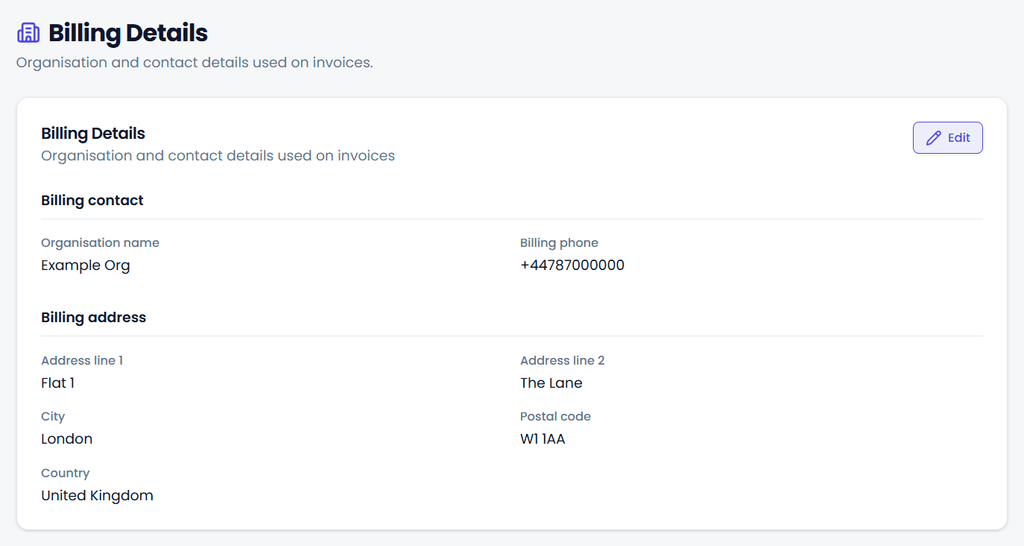
| Field | Required | What it is |
|---|---|---|
| Name | Yes | Company name of the legal entity |
| Contact number | Yes | Phone number stored with the billing contact |
| Yes | Billing email for this organisation | |
| Address Line 1 | Yes | First line of the billing address |
| Address Line 2 | No | Second line of the billing address. Leave it blank if you do not need it |
| City | Yes | City or town |
| Postal Code | Yes | Postal code |
| Country | Yes | Country |
How to update the default payment method
Open Billing (/billing) in the gosimless portal then scroll to the Payment methods section. A payment method added on the Billing page becomes the organisation default for new subscriptions, and does not replace the payment method already assigned to existing subscriptions.
- Sign in at portal.gosimless.com
- Select the organisation if the account has more than one
- Open the menu, then Billing (
/billing) - Scroll to the Payment methods section
- Add the payment method
- Save changes
/billing updates the organisation's default payment method. That default is applied to new subscriptions. To update the payment method on an individual subscription, see How to change the card on one subscription.How to download invoices and receipts
In the gosimless portal, open Billing in the menu, then Invoices (/billing/invoices). Each row shows the invoice ID, status, frequency, total, due at, paid at, and created at. Download on the row saves the invoice only. Select View on that row to open the page where you can download the receipt.
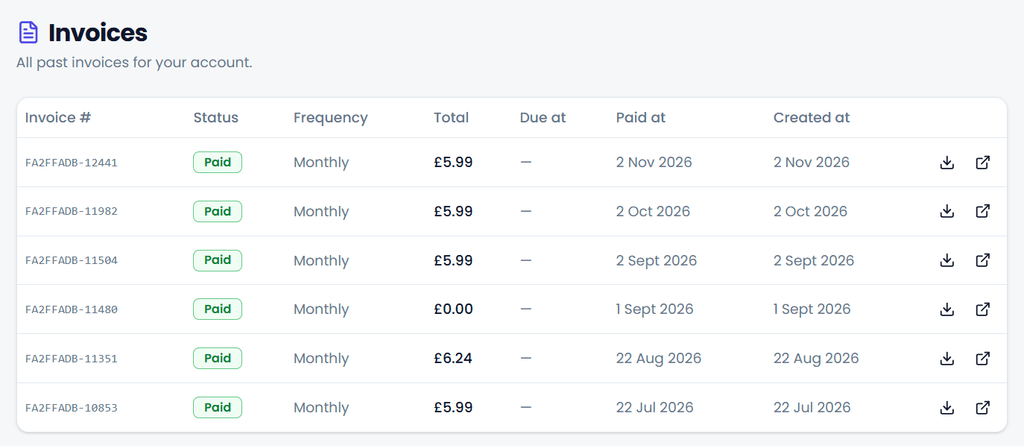
Use Billing details when the name or address on future invoices should change. Use Invoices when you need a copy of a bill or need to see whether it is draft, unpaid, past due, or paid. Status meanings, failed-payment emails, and what to do next are in the Invoices guide.
Who can change billing information
A superadmin user can view and update billing information for every organisation on the master account, and an admin user can update it only for an organisation they are assigned to. Member users cannot make billing changes - if a member user spots something wrong, they can ask an admin or the superadmin to correct it before the next invoice is issued
| Role | Billing details | If a detail is wrong |
|---|---|---|
| Superadmin | View and update every organisation on the master account | Correct it before the next invoice |
| Admin | Update only an organisation they are assigned to | Correct it before the next invoice |
| Member | Cannot make billing changes | Ask an admin or the superadmin to correct it before the next invoice |
How billing details differ from a user profile
Billing information identifies the organisation on invoices, while a user profile identifies the person who signs in, and changing one does not change the other. Sign-in codes go to the user's login email, while invoice contact uses the billing email on this screen, so a finance mailbox and a person's login can be different addresses.
| User profile | Billing details | Master account email | |
|---|---|---|---|
| Typical contents | Name and phone number | Company name, contact number, email, address | The account email tied to the superadmin |
| Who edits it | The user, from My Profile | Superadmin, or an assigned admin | gosimless support, when the superadmin email changes |
| Login email | Fixed after the user is created | Not a login | Updated with the superadmin email |
| Used for | Sign-in codes and the person's own details | Invoices, the organisation contact, and failed-payment emails | The overall account |
Failed-payment emails go to the billing email. That address is the organisation's billing email.
To give someone a new login, follow How to change the email on a user. To change where invoice contact goes, edit the organisation's billing email.
How to read spend analytics
The Billing page (/billing) includes high-level analytics of spend for the organisation, shown as incremental or cumulative, over the past 12 months, year to date, or all time. Incremental shows each period on its own, and cumulative shows a running total across that range, so you can see either the latest period or the overall trend. The chart is a summary of spend, and the invoice list remains the record of what was billed.
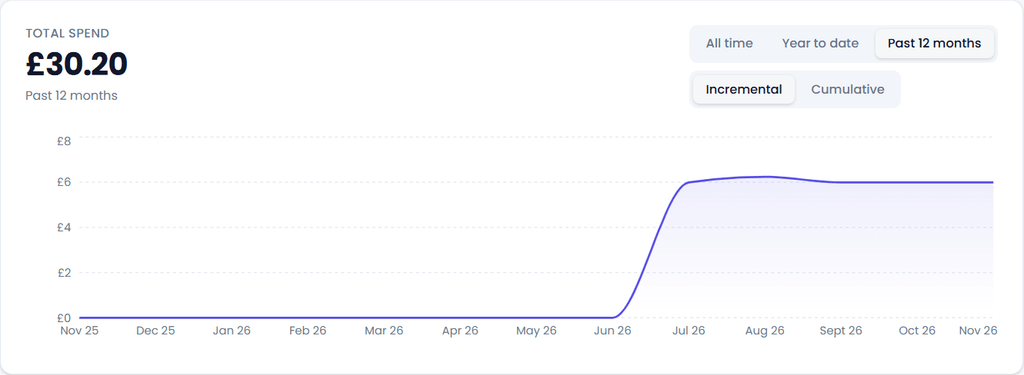
Use the past 12 months for a rolling year, year to date for the year so far, and all time for the full history available on the account. Switch between incremental and cumulative depending on whether you want period amounts or a running total. Open Invoices when you need a single bill's status or PDF.
If the account has several organisations, read the chart for the organisation currently selected. It does not replace the invoice total.
Frequently Asked Questions
Does changing the billing email change anyone's login?
The billing email is the organisation contact on invoices. Each user keeps the login email they were created with, and sign-in codes continue to go there. Update Billing details when the finance mailbox should change. When a person needs a new login, create a new user as described in Users. A superadmin email change is requested from gosimless and also updates the master account email.
Which address is printed on the PDF?
The address on a new invoice is the one saved in Billing details: Address Line 1, Address Line 2 if you entered one, City, Postal Code, and Country, with the company name from Name. A PDF already issued keeps the details it had at the time. Billing detail changes appear on future invoices. Download the new PDF from Invoices after you save if you need to check it.
Can a member correct a typo in the address?
Member users cannot update billing information. Ask an admin assigned to the organisation, or the superadmin, to edit the address under Billing, then Billing details. Do this before the next invoice run if the PDF must show the corrected address. Members can still tell you what is wrong. They cannot save the form.
How far back does the spend chart go?
The ranges are the past 12 months, year to date, and all time. All time is the longest view the billing analytics offer. The chart is a high-level total, incremental or cumulative. For a specific month's charge, open the invoice row rather than reading the point off the chart. What "all time" uses as a start date is the history stored for that organisation.
Does the chart include call charges or only the subscription?
The chart shows the organisation's total spend for every subscription, per month. That includes virtual numbers, eSIMs, and additional usage such as call forwarding. It is the full spend for that organisation, not the subscription fee alone. Open Invoices when you need one bill's lines rather than the monthly total.
Which organisation is the chart showing?
The analytics follow the organisation in context, in the same way billing information and invoices do. If you manage more than one organisation, select the entity first, then open Billing. The superadmin can move between organisations. An admin can only access organisations they are assigned to.
Will a billing change rewrite invoices already issued?
A change on Billing details does not amend past invoices. The name, contact number, email, and address on an invoice already issued stay as they were. The new details are used on future invoices only. Keep the PDF of a past invoice for your records. Changing the address does not refund or recharge an invoice that has already been paid.
Who is emailed when a payment fails?
Failed-payment emails go to the billing email on Billing details. That address is the organisation's email, not a user's login. After you change it, the next failure email goes to the new address. Update the payment method on the subscription if the card was the problem.
When should we edit billing details instead of creating an organisation?
Edit billing information when the same legal entity has a new address, phone, or accounts email. Create an organisation when a different legal entity needs its own invoices, payment method, and subscriptions. The superadmin creates organisations. An assigned admin can edit billing information and cannot create the organisation. Renaming within one company is a billing edit, not a new account.
Does a new card on the Billing page update every subscription?
A payment method added on Billing (/billing) becomes the default for subscriptions created after you save it. Subscriptions that already have a card assigned keep that card. Change each of those from Manage if they should move. A superadmin or an assigned admin can save the card. Members cannot. Steps are in Payment method.