
How Do I Optimise My WhatsApp Business Profile?
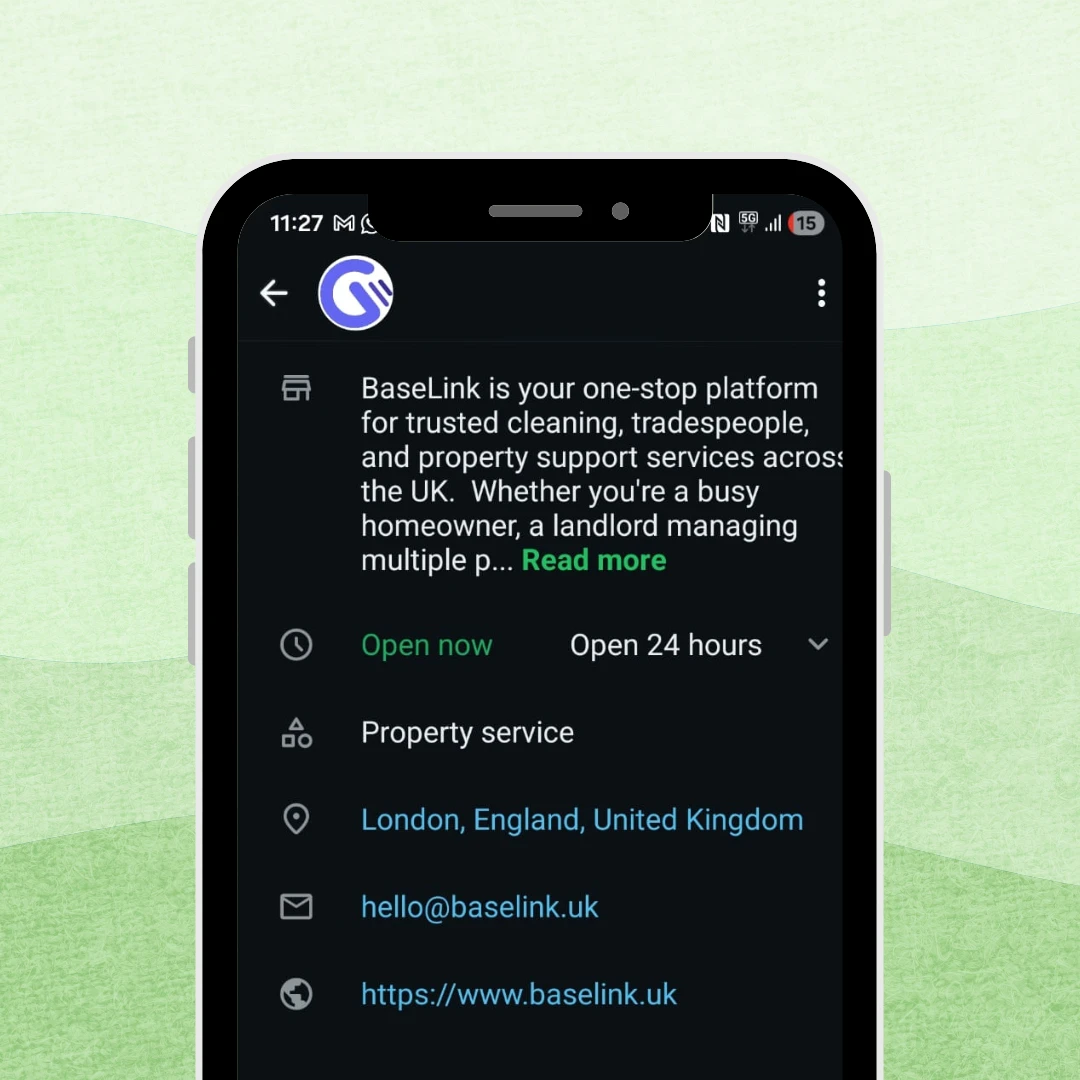
Learn how to optimise your WhatsApp Business profile step by step. Add photos, business information, contact details and a catalogue to build trust and attract more customers.
Optimising your WhatsApp Business profile is one of the easiest ways to make your business look more professional and trustworthy to customers. A fully completed profile helps people quickly understand what your business offers, how to contact you, and when you are available.
This guide explains how to optimise your WhatsApp Business profile step by step, including the key sections you should complete and tips to make your profile look more professional.
Why optimising your WhatsApp Business profile matters
Your WhatsApp Business profile often acts as a digital business card. When someone opens your profile, they immediately see information about your company, including your logo, description, contact details and services.
A well-optimised profile can help you:
- Create a strong first impression
- Clearly explain what your business offers
- Make it easy for customers to contact or locate you
- Showcase products or services through the catalogue feature
- Build trust and credibility with new customers
Leaving your profile incomplete can make your business look less professional and may cause potential customers to lose confidence before they even start a conversation.
Step 1: Navigate to your WhatsApp Business profile settings
Before you can optimise your profile, you need to access the business profile settings.
To do this:
- Open the WhatsApp Business app
- Tap Settings
- Select Business tools
- Tap Profile
This section contains all the information customers can see when they view your profile. Taking a few minutes to complete each section can significantly improve how your business appears.
Step 2: Add a professional profile picture
Your profile picture is usually the first visual element customers see, so it should be clear and professional.
Most businesses use their company logo as the profile image. This helps customers instantly recognise your brand. If you run a personal service business, such as consulting or coaching, you may prefer to use a professional headshot instead.
Some useful tips include:
- Use a high resolution image
- Ensure the logo or subject is clearly visible in a square format
- Avoid blurry or overly cropped images
A professional profile picture helps build trust and makes your business look more established.
Step 3: Upload a cover photo
WhatsApp Business also allows you to add a cover photo to your profile. This is another opportunity to showcase your brand and make your profile visually appealing.
Your cover photo could include:
- A branded banner with your logo
- Images of your products
- Photos of your services in action
- A picture of your shop, office, or workspace
A well-designed cover photo gives customers a quick visual impression of what your business does.
Step 4: Complete your business information
One of the most important steps in optimising your WhatsApp Business profile is filling out the business information section.
Business name
Use your official business name or brand name. This should match the name customers recognise from your website or social media profiles.
Consistency across platforms helps reinforce your brand identity.
Business category
Select the sector or category that best represents your business. This helps customers quickly understand what type of services or products you offer.
Examples include:
- Retail
- Healthcare
- Professional services
- Restaurants
- telecommunications
Business description
Your description is your chance to briefly explain what your business does.
Keep it clear and simple. A good description should include:
- The main services or products you offer
- Who your services are for
- What makes your business unique
For example:
"We provide professional home cleaning services across London, including regular cleaning, deep cleaning and end of tenancy cleaning."
Business address
If your business has a physical location, adding your address can help customers find you more easily.
This is especially useful for:
- Shops
- Clinics
- Restaurants
- Local service providers
Customers can tap the address to view the location on a map.
Business hours
Setting your business hours lets customers know when you are available.
This helps manage expectations and reduces frustration if someone sends a message outside your working hours.
Step 5: Add contact information
WhatsApp automatically displays the phone number you used to verify your account. However, a single phone number cannot be linked to both WhatsApp and WhatsApp business simultaneously. Therefore, if you want to use your personal number for your business profile, you will have to migrate your account to the Business app, which will move your chats over. To keep them separate, it is best to use a dedicated virtual landline number or a virtual mobile number. Luckily, we provide virtual numbers for WhatsApp Business and business eSIM mobile plans at gosimless.
You can also add additional ways for customers to reach you.
These include:
- Your email address
- A link to your website
- Links to your Facebook page
- Links to your Instagram account
Providing multiple contact options makes it easier for customers to interact with your business in the way they prefer.
Step 6: Create a WhatsApp Business catalogue
The catalogue feature allows you to showcase your products or services directly within WhatsApp.
Instead of asking customers to visit another website, they can browse your offerings directly inside the app.
Each catalogue item can include:
- A product or service name
- Images
- A description
- Pricing information
- A link to your website
For service businesses, the catalogue can list things such as:
- Packages
- Appointment services
- Pricing options
- Featured services
This makes WhatsApp feel more like a mini storefront for your business.
Step 7: Customise the about section
The About section is a short line that appears underneath your profile name.
Because it is short, it should quickly communicate something useful about your business.
Some examples include:
- "Professional plumbing services in Manchester"
- "Online clothing store with worldwide delivery"
- "Digital marketing agency helping small businesses grow"
A clear and concise about section helps customers instantly understand what you do.
Step 8: Adjust your privacy settings
To make the most of your WhatsApp Business profile, ensure that your profile settings are visible to everyone.
If your privacy settings restrict who can see your profile details, some customers may not be able to view important information such as your description, business hours or catalogue.
Allowing your profile information to be visible helps build transparency and trust.
Step 9: Enable two step verification
Security is important for any business communication channel.
WhatsApp Business allows you to enable two step verification, which adds an extra layer of protection to your account.
When this feature is enabled, a PIN is required when registering your phone number on a new device. This helps prevent unauthorised access to your account.
Enabling two step verification only takes a minute and can significantly improve your account security.
Extra tips to improve your WhatsApp Business profile
Once your profile is fully set up, there are a few additional features that can improve the customer experience.
Use greeting messages
Greeting messages automatically welcome new customers when they message your business for the first time.
This helps create a professional first interaction.
Use quick replies
Quick replies allow you to save responses to common questions.
For example:
- Business hours
- Pricing enquiries
- Booking instructions
This saves time and helps you respond faster.
Set away messages
Away messages inform customers when you are unavailable and when they can expect a reply.
This helps manage expectations and maintains good communication.
Keep your information updated
Your WhatsApp Business profile should always reflect the latest information about your business.
Make sure to update:
- Business hours
- Contact details
- Catalogue items
- Service descriptions
Keeping your profile accurate ensures customers always receive the correct information.
Frequently asked questions
Why Do Businesses Still Use Landline Numbers in 2026?
Discover why businesses still use landline numbers in 2026. Learn the benefits, use cases, and how landlines continue to support credibility, customer trust, and professional communication.
Is My Phone Compatible with eSIM?
Check if your phone supports eSIM in seconds. Learn how to find your EID, verify compatibility, and see the full list of eSIM compatible iPhone, Samsung, and Pixel devices.