Can I Use the Same Number for WhatsApp & WhatsApp Business?
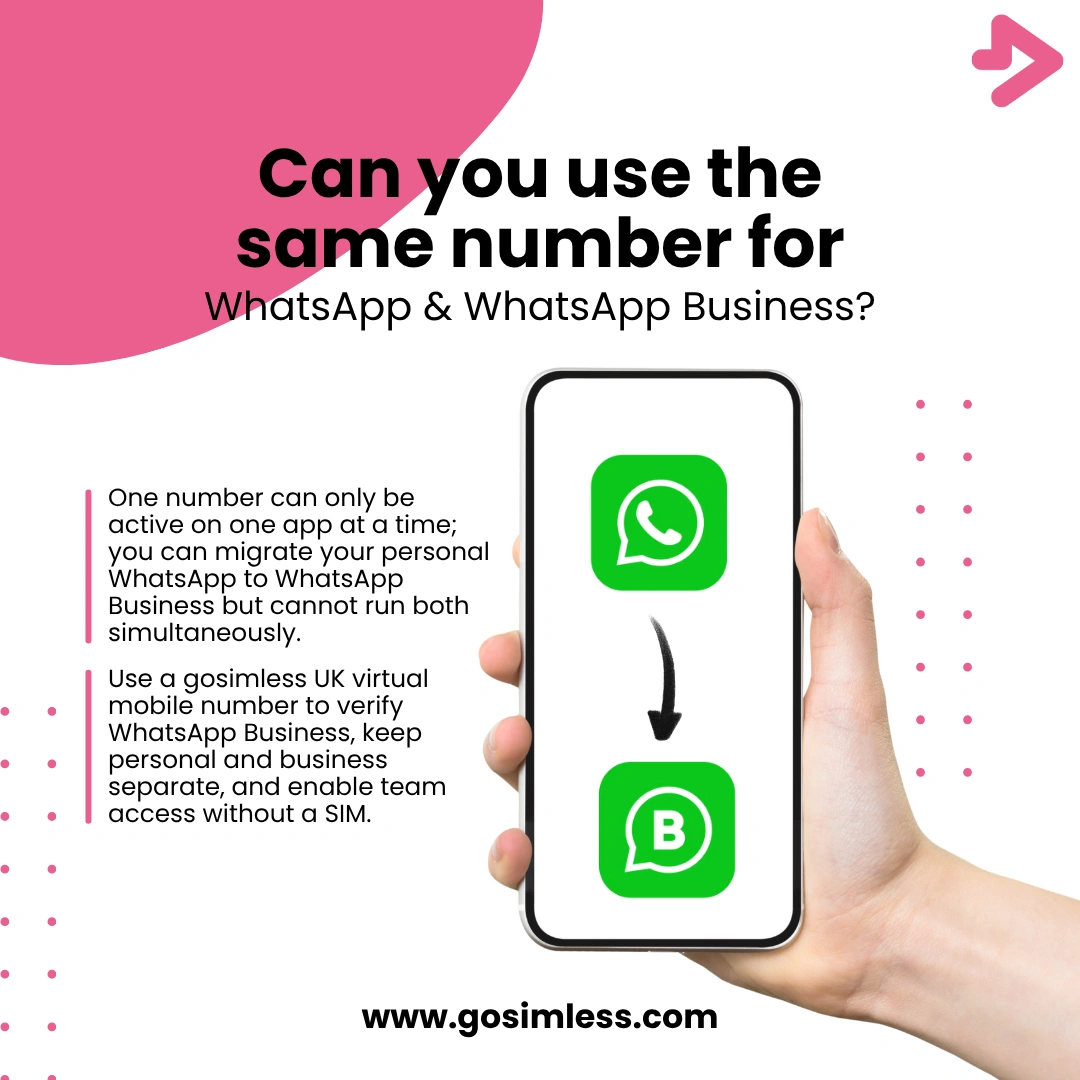
Find out if you can use the same number for WhatsApp and WhatsApp Business. Learn the differences, setup process, migration options, and tips for Android, iOS, and Web.
Many people rely on WhatsApp every day, not just for chatting with friends and family but also for running businesses. With the launch of WhatsApp Business, Meta provided a dedicated app for customer communication. Understandably, a frequent question is whether you can use the same phone number for both WhatsApp and WhatsApp Business. The answer isn't a simple yes or no - it depends on how you want to use the apps, whether you're migrating, and how you manage your contacts.
For individuals, the concern is convenience and keeping conversations under one number. For businesses, it's often about branding, professionalism, and keeping work and personal messages separate. This makes the decision important for small business owners, freelancers, agencies, and support teams.
WhatsApp vs WhatsApp Business: what's the real difference?
WhatsApp (the standard app) was created for personal communication. You add contacts, chat, make calls, and share media with friends and family. It's simple and effective.
WhatsApp Business, on the other hand, was designed for small to medium-sized businesses. It includes everything the standard app does plus features aimed at customer service and marketing:
- Business profile with description, address, and contact info
- Product catalogue for showcasing items or services
- Automated greeting and away messages
- Quick replies to save time when responding to FAQs
- Labels to organise chats and customers
This separation helps businesses present themselves professionally without mixing personal and professional life. Still, because the apps are similar at their core, people wonder if both can run on the same number.
Can I use the same number on both apps?
The official WhatsApp position is clear: a phone number can only be actively registered with one WhatsApp app at a time. That means you cannot simultaneously run both WhatsApp and WhatsApp Business on the same number across two apps.
However, you can migrate your personal WhatsApp number into WhatsApp Business. During setup, the app will detect that the number is already linked to a WhatsApp account and ask whether you want to move it over. If you confirm, your account will switch, and your chats can be imported if you have a backup.
So the short answer is: you can use the same number, but only on one app at a time. You can't keep WhatsApp personal active while also using WhatsApp Business with the exact same number.
What if I try to register the same number twice?
If you attempt to register the same phone number in both apps:
- WhatsApp will automatically log you out of one app.
- You'll be prompted to confirm which version you want to use.
- Without a backup, you risk losing chat history when switching.
This is because WhatsApp ties accounts directly to a phone number. Unlike email logins, you can't split usage between apps.
Step-by-step: switching my personal WhatsApp number to WhatsApp Business
Migrating from personal WhatsApp to WhatsApp Business is straightforward, but the exact steps vary depending on whether you're using Android or iOS. Here's what to expect.
On Android
- Download WhatsApp Business from the Google Play Store.
- Open the app and agree to the terms.
- Enter the same phone number you used for WhatsApp personal.
- You'll receive a verification code by SMS or call. Enter it.
- WhatsApp Business will detect an existing account and ask if you want to transfer chat history.
- If you have Google Drive backups enabled, confirm the restore process.
- Set up your business profile with a name, category, and description.
On iOS (iPhone)
- Download WhatsApp Business from the App Store.
- Launch the app and agree to the terms.
- Enter your existing WhatsApp number in international format (+44 for UK users).
- Enter the verification code sent by SMS or call.
- WhatsApp Business will prompt you to restore chat history from iCloud if available.
- Complete your business profile set-up.
Using WhatsApp web/desktop
WhatsApp Web and Desktop simply mirror whichever account is active on your phone. Once you switch your number to WhatsApp Business, linking works the same way:
- Open WhatsApp Web/Desktop.
- Scan the QR code using Linked Devices from your phone.
- Your business account messages will now sync on your computer.
Pros and cons of using the same number for WhatsApp Business
Choosing whether to migrate your personal WhatsApp number into WhatsApp Business comes with advantages and disadvantages.
Pros:
- Customers already know your number, so it's seamless.
- Simple migration process with backups.
- No need to purchase or maintain a second number.
Cons:
- Mixing personal and professional contacts may feel messy.
- Harder to maintain privacy since your personal number is now public.
- You can't run both apps at the same time.
- If you change back to personal WhatsApp, you'll need to repeat the migration process.
When should I use a different number instead?
For many businesses, the smarter move is to use a different number for WhatsApp Business. This is especially true if:
- You want to keep personal life separate from business operations.
- Your team needs shared access to customer chats.
- You want a dedicated business identity and avoid confusion.
- You are running marketing campaigns and don't want your private number circulating.
Using a dedicated number also helps with branding. Customers are more likely to trust a business profile with its own number rather than one tied to a personal WhatsApp.
How a UK virtual mobile number can help
This is where gosimless comes in. By using a UK virtual mobile number, you can:
- Get a dedicated business line instantly without needing another SIM card.
- Verify WhatsApp Business reliably with SMS or call.
- Keep personal and professional communications separate.
- Allow your team to handle chats collaboratively by linking to WhatsApp Web/Desktop.
For UK businesses, a gosimless number provides flexibility, privacy, and professionalism while ensuring your WhatsApp Business presence is verified and active.
Key takeaways for UK businesses
- One number can only be linked to one WhatsApp app at a time.
- Migration from personal to Business is possible and supported.
- Using the same number keeps things simple but mixes personal and professional worlds.
- A separate number, such as a gosimless UK virtual number, provides more flexibility, privacy, and professionalism.